 Countdown
iPhone · Home Screen & Lock Screen
How to add a countdown widget on iPhone
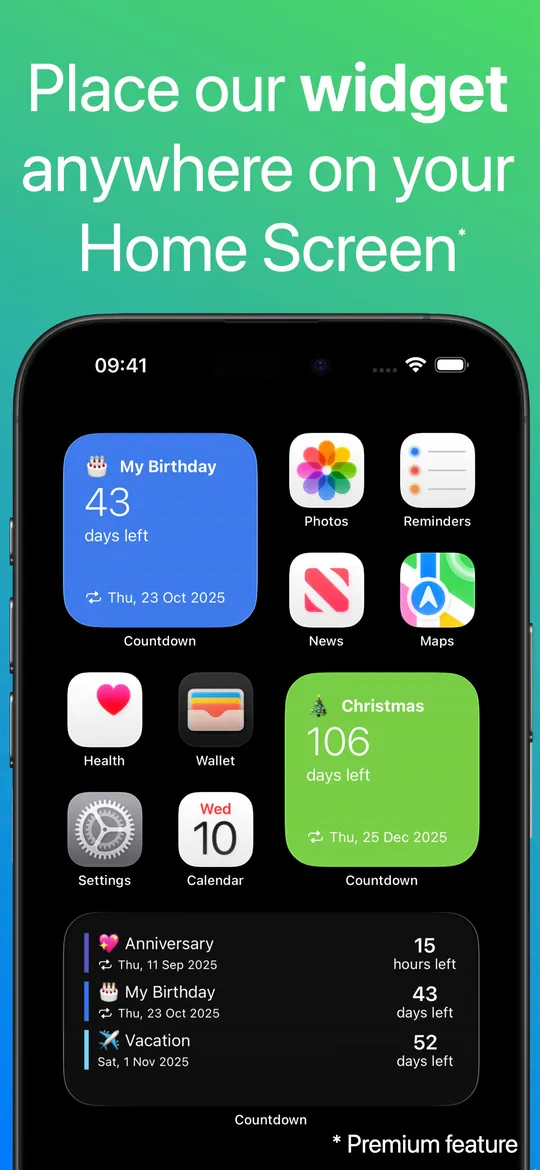
Put a birthday, trip or holiday on your Home Screen or Lock Screen with Countdown. Widgets require Premium; the app is free to download.
Start with a countdown
Open Countdown, create an event and choose its date. Give it a name you will recognize at a glance, then pick an emoji and background color. Save the event before adding the widget. You can also choose a confirmed date from the event directory.
Add a Home Screen widget
- Touch and hold an empty area of the Home Screen until the icons jiggle.
- Open the widget gallery from Edit → Add Widget, or the + button on older iOS versions.
- Search for Countdown, choose a widget size and tap Add Widget.
- Place it where you want it. Touch and hold it and choose Edit Widget to review the available settings.
Try a small widget for one important date or a larger size when you want more room. Exact options depend on the widget you choose.
Add a Lock Screen widget
- Touch and hold your Lock Screen, then tap Customize.
- Choose the Lock Screen and tap the widget area below the clock.
- Choose Countdown, add a widget and tap Done.
If Countdown is missing or looks out of date
Open the app once after installing it and confirm your event is saved. If a widget still shows the wrong event, review its settings or remove and add it again. iOS controls widget refresh timing, so a widget is not a continuously running seconds timer.
What is free?
You can create unlimited countdowns in the free iOS app. Home Screen, Lock Screen and StandBy widgets are Premium features. Premium is a one-time purchase rather than a subscription. The current app requires iOS 17 or later.
For a browser-only option, see the online countdown guide.